Restarts, upgrades, configuration changes, new members, restores and deletions all start as a plan: what will
change, in what order, how risky it is and what it will disrupt. Policies decide who has to agree. Then the plan
runs as an operation that survives failures and restarts.
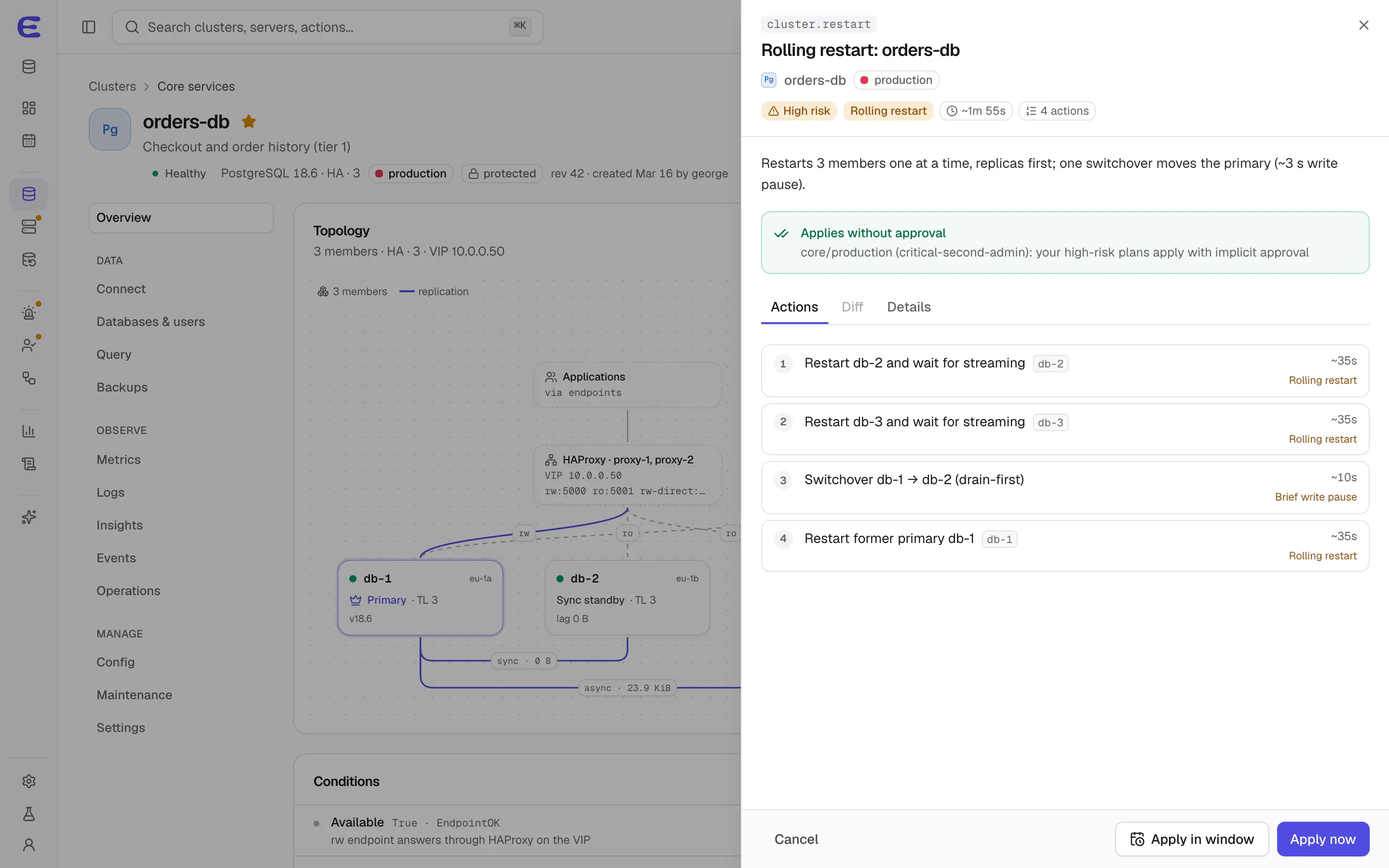
A rolling-restart plan for a production PostgreSQL cluster: Actions, then Restart.Interactive demo, simulated data.
Open this screen in the demo
What a plan shows
A plan is a preview of one change to one cluster. Before anything runs, it lists the exact difference between
the current and the requested configuration, the ordered actions that will carry it out, the estimated
duration, and checks such as “shared_buffers 8 GB is 25% of the 32 GiB memory limit”.
Values that ElastiCluster calculates for you are shown with their result and the reason. If the memory limit
changes, the plan says that work_mem moves from 14 MB to 23 MB and why, instead of hiding it.
Each plan is stored once and bound to a hash of its content. The console, the ecl command line, the
REST API and the MCP server show the same plan, so an approver approves exactly what will run.
Risk and disruption, in plain terms
Every plan carries a risk level, from low to critical, and every action carries the disruption it causes. In
production, a medium-risk plan that restarts members is raised to high.
Risk levels
Risk
Typical changes
Low
Creating a cluster, an online parameter change, a backup now
Medium
A rolling restart, a switchover, a minor upgrade, a restore to a new cluster
High
Removing a member, a major upgrade, a forced failover, reducing memory
Critical
Deleting a cluster, an in-place restore, an unfenced disaster-recovery promotion
Disruption levels
Disruption
What clients notice
None
Nothing restarts or reconnects
Reload
Configuration reloads in place
Connection reset
Clients reconnect once
Rolling
One member at a time; the cluster stays available
Partial downtime
Writes pause briefly, typically under a minute
Downtime
The cluster is unavailable while the step runs
Destructive
Data is removed; typed confirmation required
Who approves what
Policies belong to environments. A project starts with production, staging and development, each with its own
rules, and a plan that touches several environments follows the strictest one.
Production and staging require a second admin for critical plans by default; you can also
require a second admin for high-risk plans.
Development lets you approve your own critical plans after typing the cluster name.
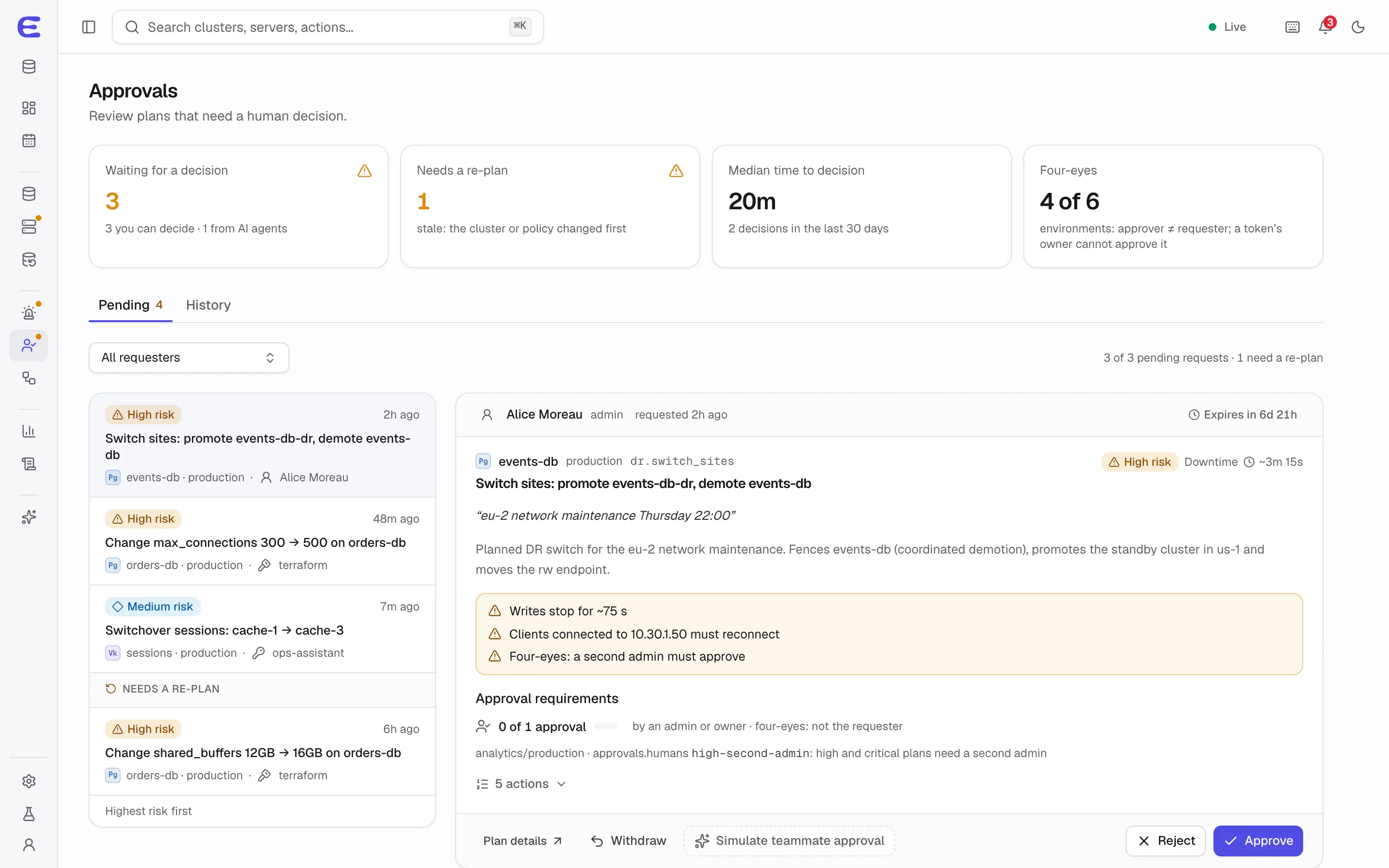
Four-eyes is on in production: the approver must be a different person from the requester,
and the owner of an AI assistant’s token can never approve that token’s requests.
Operators approve up to medium risk; high and critical plans need an admin or owner.
Approvals happen in an interactive session after re-entering a second factor.
Approval links in notifications only open the console; they never approve anything by themselves. Approvals
expire after seven days by default.
The approvals inbox: highest risk first, with the requirement each plan still needs.Interactive demo, simulated data.
Open this screen in the demo
Stale approvals never run
An approval belongs to one version of one plan. If the cluster changes in the meantime, if a port or quota the
plan reserved is taken, or if the policy becomes stricter, the approval turns stale and nothing runs. The inbox
groups stale items under “Needs a re-plan”, and Re-plan prepares the same change against the current state.
Maintenance windows
Disruptive plans can wait for the environment’s maintenance window, written as days, hours and a time zone such
as sun 04:00-06:00 Europe/Berlin. Production defaults to Sunday 04:00 to 06:00. If a window ends
mid-change, the operation finishes the current member and waits for the next window. An admin can start an
approved plan early, and that is recorded too.
Operations that finish what they start
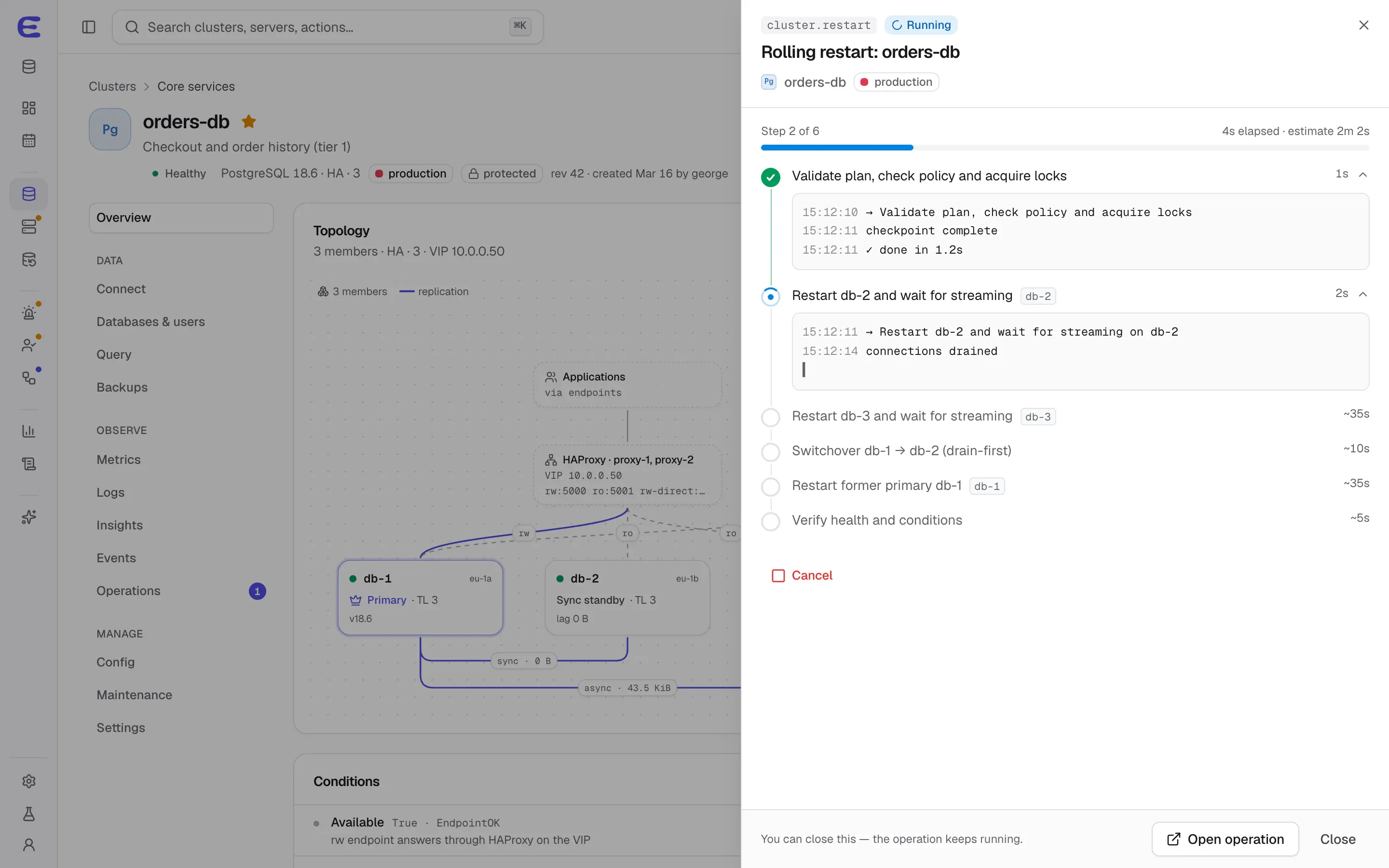
An applied plan becomes an operation. Each step is saved before it runs, so if the control plane restarts, it
resumes at the step it was on and checks what the step already achieved before repeating anything.
A failed step pauses the operation and keeps its locks. You choose: retry the step, skip it
with a reason, or abort and undo the completed steps in reverse order.
Safety steps cannot be skipped: fencing an old primary, integrity checks and the point after
which an upgrade cannot be rolled back.
A network partition pauses instead of failing. If a server stops answering mid-change, the
operation waits, then asks whether to keep waiting, continue without it or abort.
Rolling changes watch health. If cluster health drops below where it started, the change
pauses and alerts you.
One change per cluster at a time. Concurrent plans never share a port or exceed a quota.
Some small decisions apply at once and are still audited: marking favourites, acknowledging and silencing
alerts (with undo), pinning a backup, editing notification routes, snoozing an advisor recommendation, turning
deletion protection on or off (admins only), renewing an agent certificate and approving a new server.
AI assistants never get these shortcuts; for them, even a silence is a plan.
Not a schema-migration tool
Plans cover the operation of clusters: topology, configuration, versions, users, backups and restores. Changes
to your application’s tables and indexes stay with the migration tool you already use.
Status
Plans, approvals and resumable operations are being built now and arrive with the first preview,
v0.1. You can try the whole flow in the
interactive demo: open orders-db, choose Actions, then Restart,
and apply it, or run the “AI agent requests a change” scenario from Demo controls and approve it.
The interactive demo runs the whole console on simulated data. Trigger a failover, approve an AI assistant’s
plan, restore a backup to a point in time. Nothing to install.